

HandBook
ROE (Rules Of Engagement)
The ROE is a Important rule you must follow in active combat " Do not fire unless fired upon" and to ID targets.
This is for the safety of Civ Pop and Friendlies.

Battle Buddies
In all Operations you have to have a Battle Buddy to have your back in situations if you don't have one you risk dying in combat or getting pinned down.
To assign a Battle Buddy go to that person and Ace Interact with them and choose " assign Battle Buddy" this will then light him up on your radar as your Battle Buddy , you can also change your radar Icon colour to a different one so that you and your battle buddy can recognize each other on radar.

IR Strobes
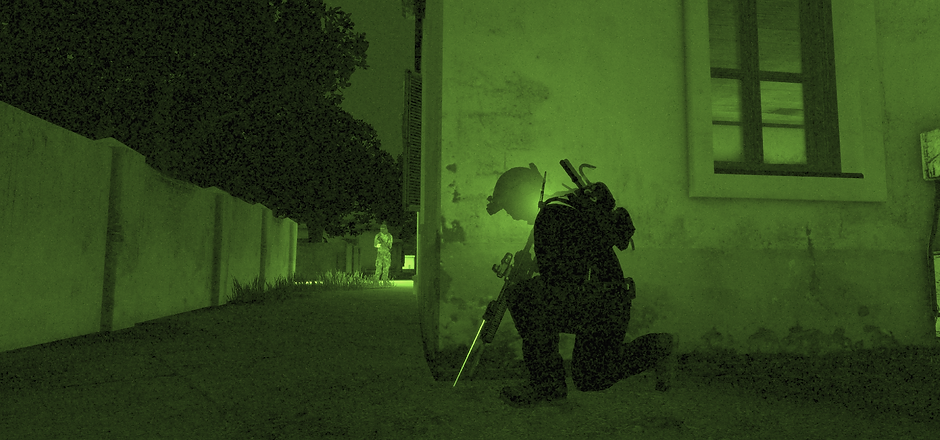
IR Strobes are used in stealth Operations so that friendlies can ID that it's you in the distance , IR Strobes can only be seen when using NVG's and are Invisible to the naked eye.
To attach a IR Strobe you must have a IR Strobe in your Inventory , This is located in the attachments and equipment bar , then Ace Interact with yourself then go Equipment > Attach IR Strobe.
.png)
Mortar Fire
When you get advised over the radio that enemies are bombarding your position best act is to stay away from buildings and to either lay down on the ground, in slopes or under things that would be able to take a direct mortar shell.
Taking cover inside a building is critical and risks that the building could collapse on you , buildings can also throw off parts that can injure or kill you if struck by it.

Grenades and Explosions
High explosive grenades are very dangerous on the field and either injures or knocks you out.
A grenade when detonated blows shrapnel in all directions and if hit by one it can be fatal.
Explosions are also as dangerous as grenades, cook offs can burn you and also severely injure you , if a plane or a vehicle explodes it throws of shrapnel if hit by it, it can kill you or knock you out
If you are close to explosions it can lead to ear ringing and deafening if you don't have ear plugs in, this will make you deaf for a short period of time.

ACE Medical
ACE Medical is something you will be taught In training so don't worry about not knowing what to do.
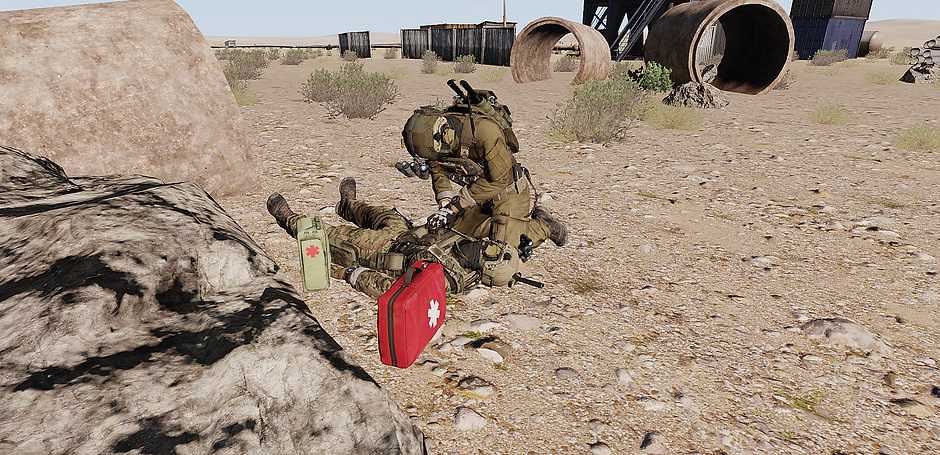
In a Scenario where you get injured you or your team Medic will have to help you, not acting fast on injuries could be fatal due to you losing too much blood.
To use ACE Medical you will have to use Ace Interaction by pressing Ctrl+Windows key or any custom keybind you have made it, then you go to the Medical section and start healing.
If someone else is injured and you want to help them you use Windows Key.
Here is a example of a Scenario:
Injuries :
Fractured leg
Minor avolsion
In pain
Bleeding
Main priority is to stop the bleeding by applying a tournicat.
Then apply a bandage.
Then when you have stopped bleeding remove the tournicat and Inject yourself with Morphine to stop the pain.
Then apply a splint to your fractured body part.
NOTE only use 1 Morphine every 5 minutes or you risk passing out and dying.
If you ever hear your heart beat inject yourself with Epinephrine.
This is how ACE Medical works, if you are a medic you will be taught how to use KAT Medical. And quicker way to open your Medical menu is to press (H). You can also open someone else's medical menu by looking at them and pressing (H)
Gun Jams
Always now and then your gun can jam in combat now don't panic you can clear the jam in less than 10 Seconds using Ace Interaction ( Ctrl+Windows Key)
Then go equipment > clear jam
And you are off.
LeaderShip and Ground Command
In Squads you must follow the squad leader or ground commands orders
Depending on the rank level highest ground rank on duty gets ground command unless he gives it to someone lower than him.
Medals and Commendations
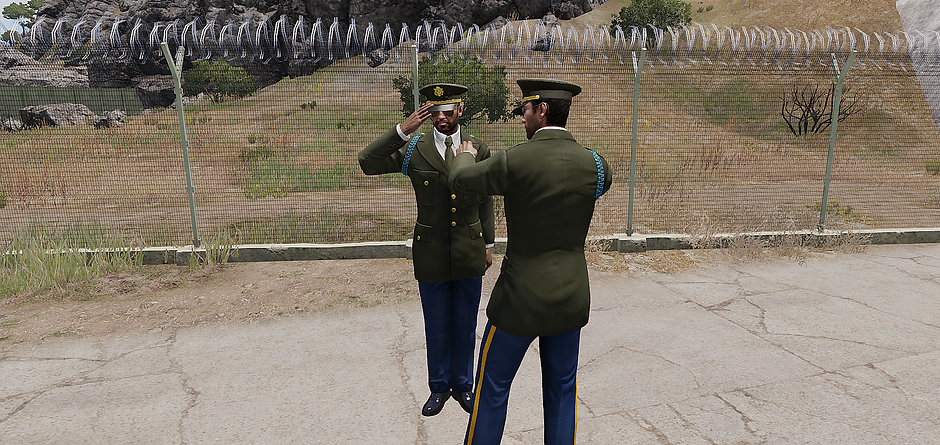
Medals or Commendations can be earned on the field or you serving time in the Unit , Medals can be earned by doing actions , In the Discord is a tab that shows all the Medals and how to earn them.
.png)
Ace Interaction
To access ace self interaction you must hold ctrl+windows key to open it and a wheel or list will appear. You can also ace interact with other objects and players by just holding windows key.

Navigation
Navigation is important and can be very useful. Each Infantry unit will be equipped with a Map and a Compass. To access your map press the (M) Key to bring it up. If you want to access you Compass press and hold the (K) Key to bring it up.
Your map is used for a lot of things, one of it's useful purposes is to mark positions. For this we use Metis Marker, a special tool that allows you to mark a position and identify it. You are given the options to customize the marker with information you have, whether it is friendly or not, the size of the group, and other information.
Your Compass is important to identify in what direction something is. On your compass is N, E, S, and W. and circling it is numbers going from 0 to 340. These numbers are your bearings, usually used to give a more precise direction.

Task Force Radio Set up
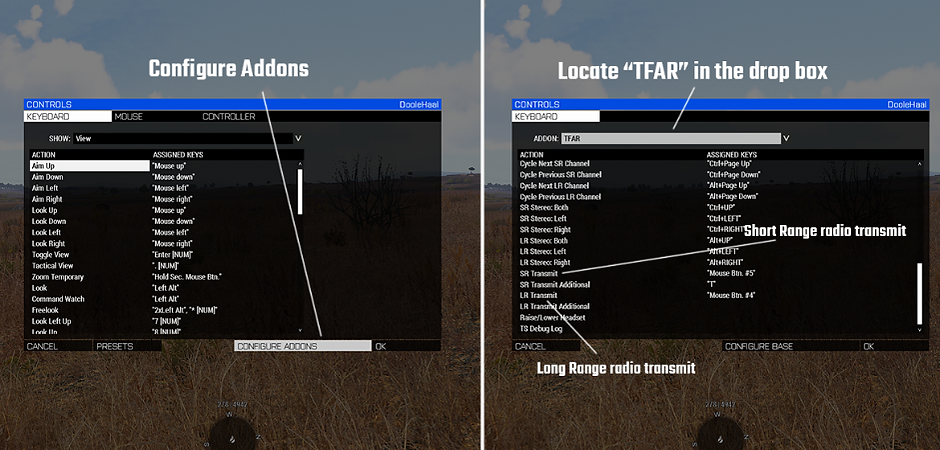
Task Force Radio is the radio addon that we use. This brings in a realistic radio into Arma 3. For it to function you will need to get Team speak and install the addon for it. Instructions on how to install the TFAR addon on Team Speak is on the 48ID Discord server in the channel "tfar-plugin-link" including the team speak server ip located in "team-speak-server".
Once you've finished installing the addon on team speak, you can move onto setting it up in Arma 3. To do this you go into Arma 3, and then go to Options > Controls > Configure Addons > TFAR > and locate "LR Transmit" and "SR Transmit". These will be the binds you press to transmit on a long range radio or a short range radio. If you struggle ask for help on the "Help-Forum" Channel on Discord.
Vaulting/Enhanced Movement
To Vault or climb over Objects/Walls you can press the (V) key, this will then make your character climb over anything that is in front of you.


Weapon Ready
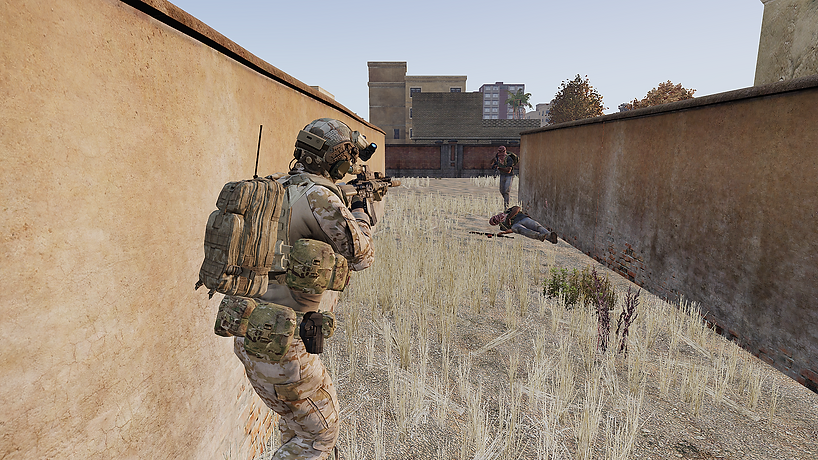
You can put your weapon in a high ready or low ready stance by pressing (T). To swap between the two you either look up and press (T) for high ready or look down at the ground and press (T) for low ready.
You can also run while in either one of these stances. These are useful to avoid flagging team mates.
Throw/Drop Weapon
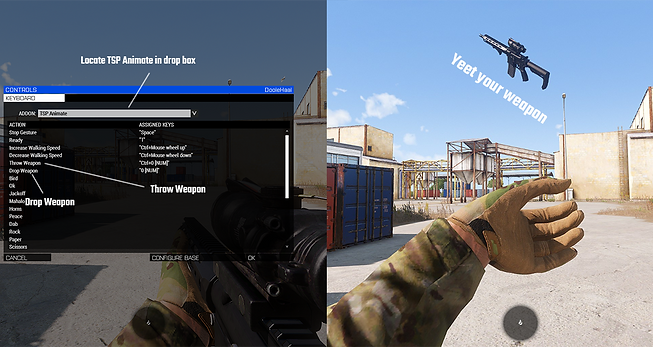
This is an extra feature we like to include because it can be useful in some occasions. You can find the binds to throw or drop your weapon in Options > Controls > Configure Addons > TSP Animate. This function could help to pass a weapon to a unarmed team mate that is across a road from you whilst under fire.
cTab Set up/How to
cTab is a device that can be used to navigate, plan or message other players if they have one in their inventory too. cTab also has a helmet camera feature for squad leaders. Having the tablet in your inventory will allow you to view anyone's helmet camera (If they have one) safely from a distance. This guide is how to set up and use this addon.

The cTab items can be located in the arsenal inside the "Misc" category. Infantry use the Galaxy S7 ATAK, which is the primary device in cTab. To use cTab you need to have it in your inventory.

To set up the key binds in game you will have to go to Options > Controls > Configure Addons > cTab. There you can set what key you want to press to open either version of cTab. The main interface is a small GPS sized version that will pop up at the bottom left of your screen. This one is not interactable. Whereas the Secondary is a large sized version that is interactable. For this guide we will use the secondary interface.
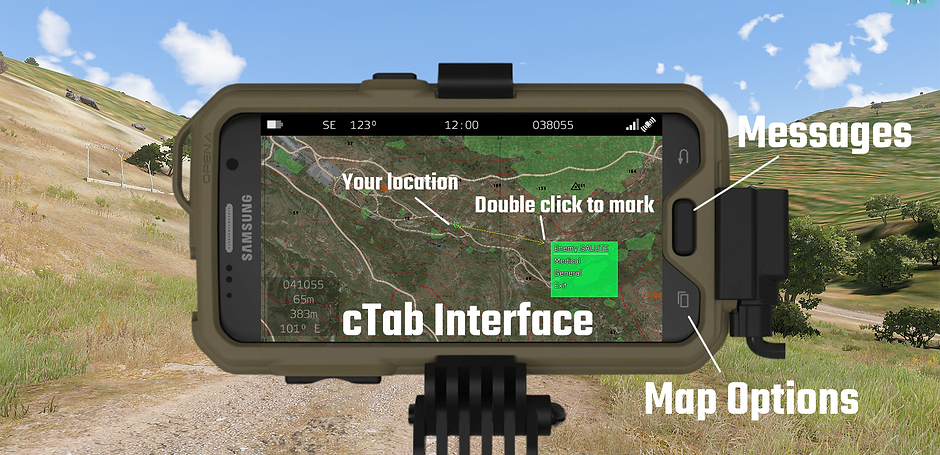
This is the Secondary cTab interface. It shows your exact location on the map, and it also allows you to mark things on cTab's map (Note these markings won't show up on the main map, only on cTab). You can customize your map by clicking on the map options button. You can also easily swap between the map and messages by clicking the home button. All done!
48ID/ACHO
Enlist now!
View Distance Tool
No need to change your view distance setting in your options! You can instead use the addon CH View distance. The default key bind to open the interface is (ctrl+\). In this interface you can customize your view distance for on foot, in vehicles, or air.
